
Reactions let you participate and express yourself without unmuting or interrupting. Applause, thumbs up, confusion, and more—all visible to others in real-time.
Before your session: Run System Check to make sure everything is working.
Why Use Reactions
Silent Participation
Reactions let you:
- Agree without saying "I agree"
- Celebrate without unmuting to clap
- Signal confusion without interrupting
- Show engagement even when not speaking
Benefits for Everyone
For participants:
- Participate without talking over others
- Express emotions in professional way
- Quick feedback that doesn't derail discussion
For facilitators:
- Gauge room energy at a glance
- Get quick votes/polls
- Know when to slow down or speed up
Types of Reactions
Quick Reactions
Available via the reactions menu:
| Reaction | Meaning | When to Use |
|---|---|---|
| ❤️ Heart | Love it, great | Strong positive reaction |
| 👍 Thumbs Up | Agree, yes, good | Approval, quick vote yes |
| 🎉 Celebration | Hooray! | Celebrating a win |
| 👏 Clap | Applause, well done | Appreciation |
| 😂 Laugh | Funny | Something amusing happened |
| 😮 Surprise | Wow, unexpected | Amazement, realization |
| 😢 Sad | Disappointing | Empathy, sadness |
| 🤔 Thinking | Hmm, considering | Need time to process |
Hand Raise
The hand raise is a separate feature from emoji reactions:
| Feature | Behavior |
|---|---|
| ✋ Hand Raise | Stays raised until you lower it |
| Visibility | Shown in participant list and on your avatar |
| Notification | Facilitators hear a sound when hands are raised |
Sending Reactions
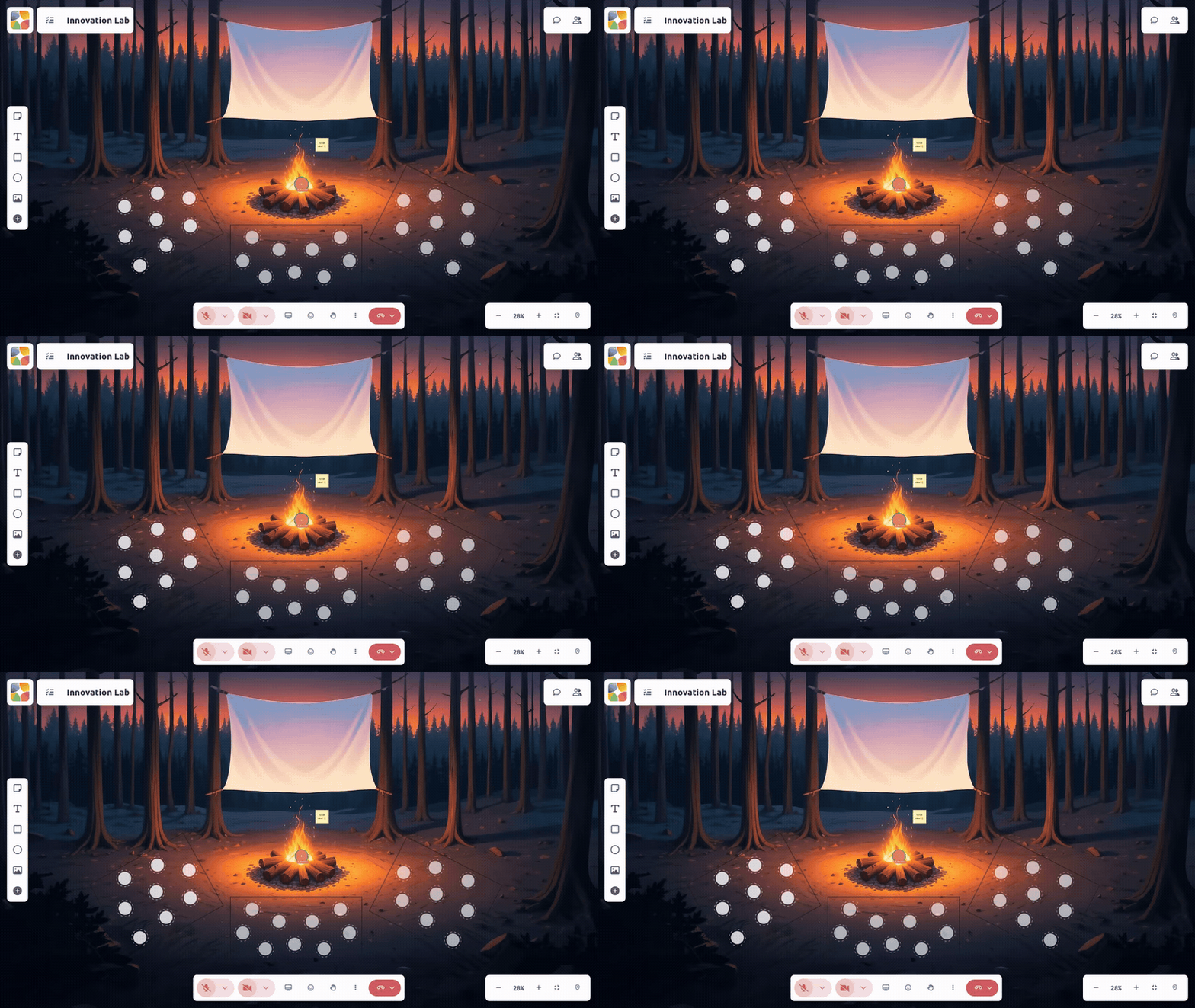
Using the Reaction Bar
- Find the Reactions button (often smiley face icon)
- Click to open reaction picker
- Select your reaction
- Reaction displays to all participants
Reaction Duration
Different reactions behave differently:
Momentary reactions (👍 👏 ❤️):
- Appear briefly (3-5 seconds)
- Float or animate
- Auto-disappear
Persistent reactions (✋ ☕):
- Stay until you remove them
- Visible in participant list
- Must manually clear
Where Reactions Appear
On Your Video
Your reaction may appear:
- Floating above your video tile
- As overlay on your video
- Next to your name
On Canvas
Some spaces show reactions:
- Near your avatar position
- As floating elements
- In a reactions feed
In Participant List
Persistent reactions show:
- Next to your name
- As icons or indicators
- Until you clear them
Raising Your Hand
Why Raise Hand?
Hand raising creates an orderly queue:
- Let facilitator know you want to speak
- Don't interrupt current speaker
- Fair turn-taking
How to Raise Hand
- Find the hand raise button in the control bar (✋ icon)
- Click it once to raise your hand
- Your raised hand is visible to everyone
- Click the button again to lower your hand
Hand Raise Etiquette
Do:
- Raise hand and wait patiently
- Lower hand if your question gets answered
- Keep hand raised only if still relevant
Don't:
- Raise and unmute immediately
- Keep hand up after speaking
- Raise for trivial comments
Facilitator Response
When hand raised:
- Facilitator sees hand icon
- You may enter a queue
- Facilitator calls on you when appropriate
- Lower hand after speaking
Reactions for Voting
Quick Polls with Reactions
Facilitators may say:
"Give me a thumbs up if you agree, thumbs down if you disagree"
Your reaction becomes your vote!
Voting Best Practices
- React quickly so vote counts
- Only use designated reactions
- Clear previous reactions first
- Wait for poll to close
Engagement Without Reactions
Other Ways to Participate
Beyond reactions:
| Method | When to Use |
|---|---|
| Chat | Longer thoughts, questions |
| Canvas | Add content, sticky notes |
| Audio | When called on or in discussion |
| Video | Nodding, expressions |
Combining Methods
Effective participants use multiple channels:
- React for quick feedback
- Chat for questions
- Canvas for contributions
- Audio when called on
Reaction Accessibility
For Screen Reader Users
- Reactions are announced
- Keyboard shortcuts available
- Alternative text for reaction icons
For Motor Accessibility
- Large click targets
- Keyboard-only access
- Sticky reactions (persistent)
Reducing Distraction
If reactions are overwhelming:
- Some spaces allow hiding reactions
- Focus on speaker instead
- Check settings for reaction preferences
Common Questions
"My reactions aren't showing"
- Verify reactions are enabled in space
- Check internet connection
- Refresh the page
- Try a different reaction
"I accidentally sent wrong reaction"
- Momentary reactions disappear quickly
- Persistent reactions can be clicked again to remove
- Others will see it briefly
"Reactions are distracting me"
- Check if you can hide reactions in settings
- Minimize participant panel
- Focus on speaker/canvas
- Ask facilitator about reducing reactions
"I don't see the reactions menu"
- Look for smiley face icon
- Check bottom of video area
- May be hidden in "more" menu
- Reactions might be disabled by facilitator
Reactions Best Practices
For Participants
- React authentically - Don't over-react
- Clear persistent reactions - Lower hand after speaking
- Match the tone - Professional reactions in professional settings
- Don't spam - Quality over quantity
For Active Participation
- React to show you're listening - Occasional 👍 shows engagement
- Use question reaction - When confused, ❓ is less disruptive
- Celebrate others - 👏 for good contributions
- Vote when asked - Participate in quick polls
Related Guides
- Communicating - Chat and other communication
- Setting Up Audio & Video - A/V basics
- Keyboard Shortcuts - Quick access
- System Check - Verify your setup