
Communicating
Beyond voice and video, Kolab gives you several ways to communicate. Here's how to use chat, reactions, and other tools to participate effectively.
Chat
Chat is your text-based communication channel. All chat messages are visible to everyone in the space (there are no private messages).
Opening Chat
Look for the chat icon (speech bubble) in the control bar. Click to open the chat panel.
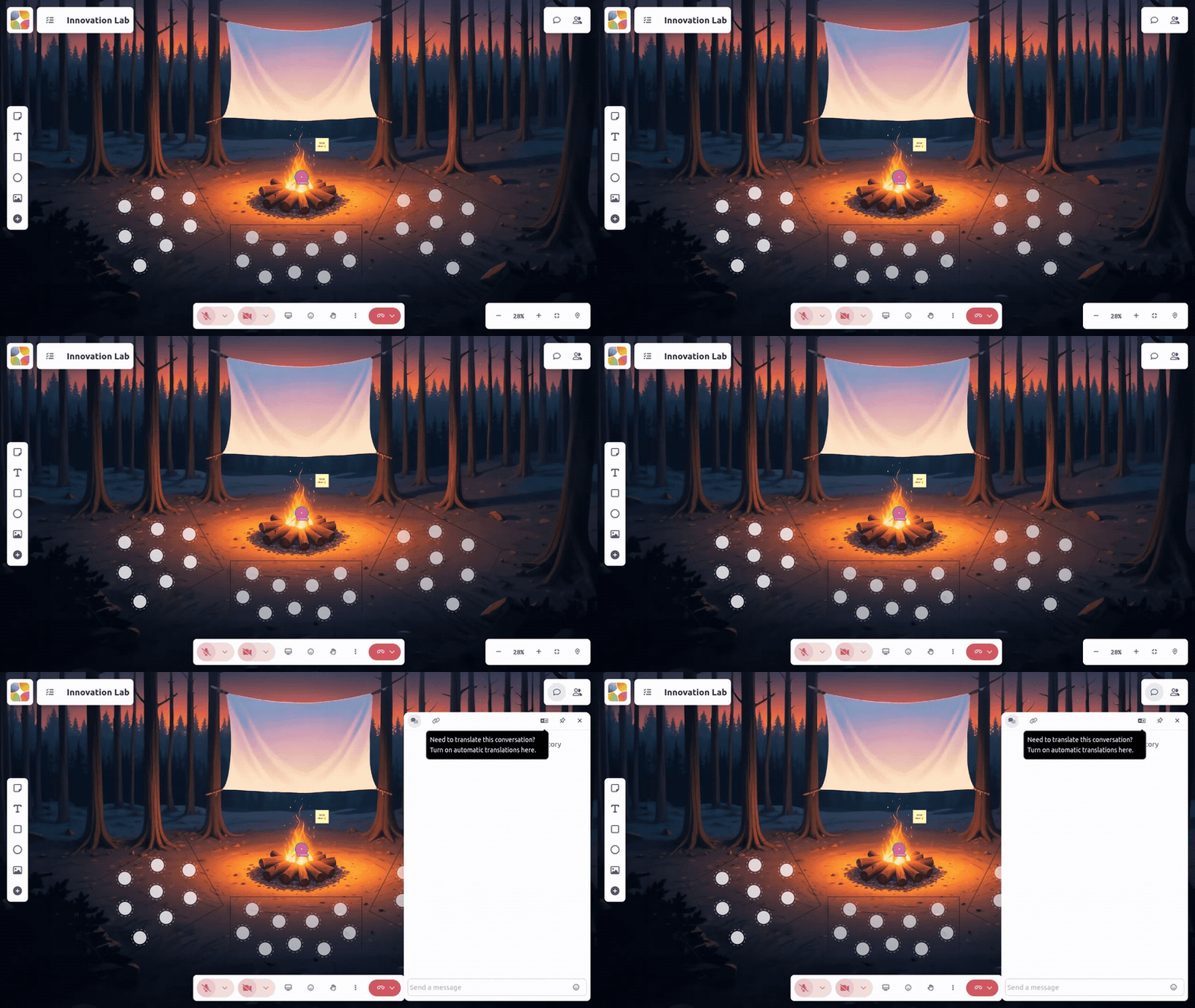
Sending Messages
- Type your message in the text box
- Press Enter or click the send button
- Your message appears for everyone
When to Use Chat
| Use chat when... | Instead of... |
|---|---|
| You have a question but don't want to interrupt | Speaking over someone |
| Sharing a link or resource | Spelling it out loud |
| Multiple conversations are happening | Trying to get attention verbally |
| The facilitator asks for text responses | Speaking one by one |
| Someone asks "put your answer in chat" | Waiting your turn to speak |
@Mentions
Type @ followed by someone's name to mention them. A dropdown will appear with matching names - select the person you want to mention.
Chat Etiquette
- Keep it relevant - Stay on topic for the session
- Be concise - Short messages are easier to read
- Use @mentions - Gets specific people's attention
- Don't spam - One message is enough
Reactions & Emoji
Quick visual responses without interrupting the flow.
Using Reactions
Look for:
- Emoji picker - Click to choose from available reactions
- Quick reactions - Common ones like thumbs up, applause, heart
- Reaction bar - Pre-selected options for fast access
Available Reactions
| Reaction | Typically means |
|---|---|
| ❤️ Heart | Love it, strong support |
| 👍 Thumbs up | Agree, got it, yes |
| 🎉 Celebration | Hooray, great news! |
| 👏 Clapping | Appreciation, great point |
| 😂 Laughing | That was funny |
| 😮 Surprised | Wow, unexpected |
| 😢 Sad | Disappointing |
| 🤔 Thinking | Hmm, let me consider |
Where Reactions Appear
Depending on the setup:
- On your video - Shows next to your face
- On the canvas - Appears where you click
- In a reactions bar - Collected in one place
Raising Your Hand
When you want to speak or have a question, raising your hand is the polite way to signal the facilitator.
How to Raise Your Hand
- Look for the hand raise button (usually ✋ icon)
- Click it once to raise your hand
- Your hand appears raised (others and the facilitator can see)
- Wait to be called on
- Click again to lower your hand (or it may auto-lower after you speak)
When to Raise Your Hand
- You have a question
- You want to contribute to the discussion
- You need technical help
- You want to respond to something said
Hand Raise Etiquette
- Be patient - The facilitator will get to you
- Lower it if resolved - If your question gets answered
- Don't wave it repeatedly - One raise is enough
- Write context in chat - "Hand raised - question about audio"
Voice Communication
The primary way to communicate in Kolab is through voice, enhanced by spatial audio.
Speaking Tips
- Unmute first - Check you're not muted before speaking
- Speak clearly - Good audio setup helps (see System Check)
- Be aware of proximity - In spatial audio, you're mainly heard by nearby people
- Pause for responses - Give others a chance to react
When You Can't Be Heard
- Check if you're muted
- Move closer to the person you're talking to
- Verify your microphone is working (System Check)
- Use chat as backup
Video Communication
Your video is more than just showing your face - it's a communication tool.
Camera Best Practices
- Keep it on when possible - Kolab is designed for cameras on
- Good framing - Face centered, shoulders visible
- Good lighting - Face the light source
- Eye contact - Look at the camera occasionally, not just the screen
Non-Verbal Communication
Even without speaking, your video communicates:
- Nodding - Shows understanding or agreement
- Facial expressions - React to what's being said
- Attention - Are you engaged or distracted?
- Presence - Just being visible matters
When to Turn Off Video
It's okay to turn off video briefly if you need to:
- Step away momentarily
- Handle something private
- Deal with a distracting background
Just turn it back on when you return.
Communicating Across Distances
In spatial audio, communication works differently at different distances.
When Close
- Normal conversation works
- You hear each other clearly
- Good for 1:1 or small group discussion
When Far
- Voices fade to silence
- Intentional for multiple simultaneous conversations
- Move closer if you need to hear someone
Getting Someone's Attention at a Distance
If you need to reach someone far away:
- Chat - Send them a message
- Move closer - Walk toward them on the canvas
- Wave/React - If they're looking your way
- Ask the facilitator - They may have broadcast abilities
Audio Zones
Some spaces have audio zones - areas where different audio rules apply.
How to Recognize Zones
- Visual boundary (colored area, shape)
- Sound changes when entering/leaving
- Facilitator may announce them
Zone Types
| Zone type | What happens |
|---|---|
| Global audio | Everyone hears everyone |
| Spatial audio | Proximity-based (default) |
| Private zone | Only people inside can hear each other |
| Stage zone | One person broadcasts to everyone |
Related Guides
- Setting Up Audio & Video - Get your setup right
- Navigating the Space - Moving around for better communication
- System Check - Verify everything works