
Navigating the Space
Kolab isn't a grid of faces - it's a space you can move around in. This is what makes Kolab feel more like being in a room together than watching a webinar.
Understanding the Canvas
When you join a Kolab session, you're on a canvas - an infinite 2D space shared by everyone in the session.
What You'll See
- Participant videos scattered around the space (including yours)
- Content like sticky notes, drawings, images, and documents
- Zones that might be set up for different activities
- Other participants moving around
The Big Idea: Proximity Matters
In Kolab, where you are on the canvas affects what you hear. This is called spatial audio.
- Closer = louder - Move toward someone to hear them better
- Further = quieter - Move away and their voice fades
- Natural conversations - Multiple groups can talk without interrupting each other
This might feel unusual at first, but it's what makes Kolab feel like a real room.
Moving Around
Click and Drag (Pan)
To move your view around the canvas:
- Click on an empty area of the canvas (not on a video or object)
- Drag in any direction
- Your view slides in that direction
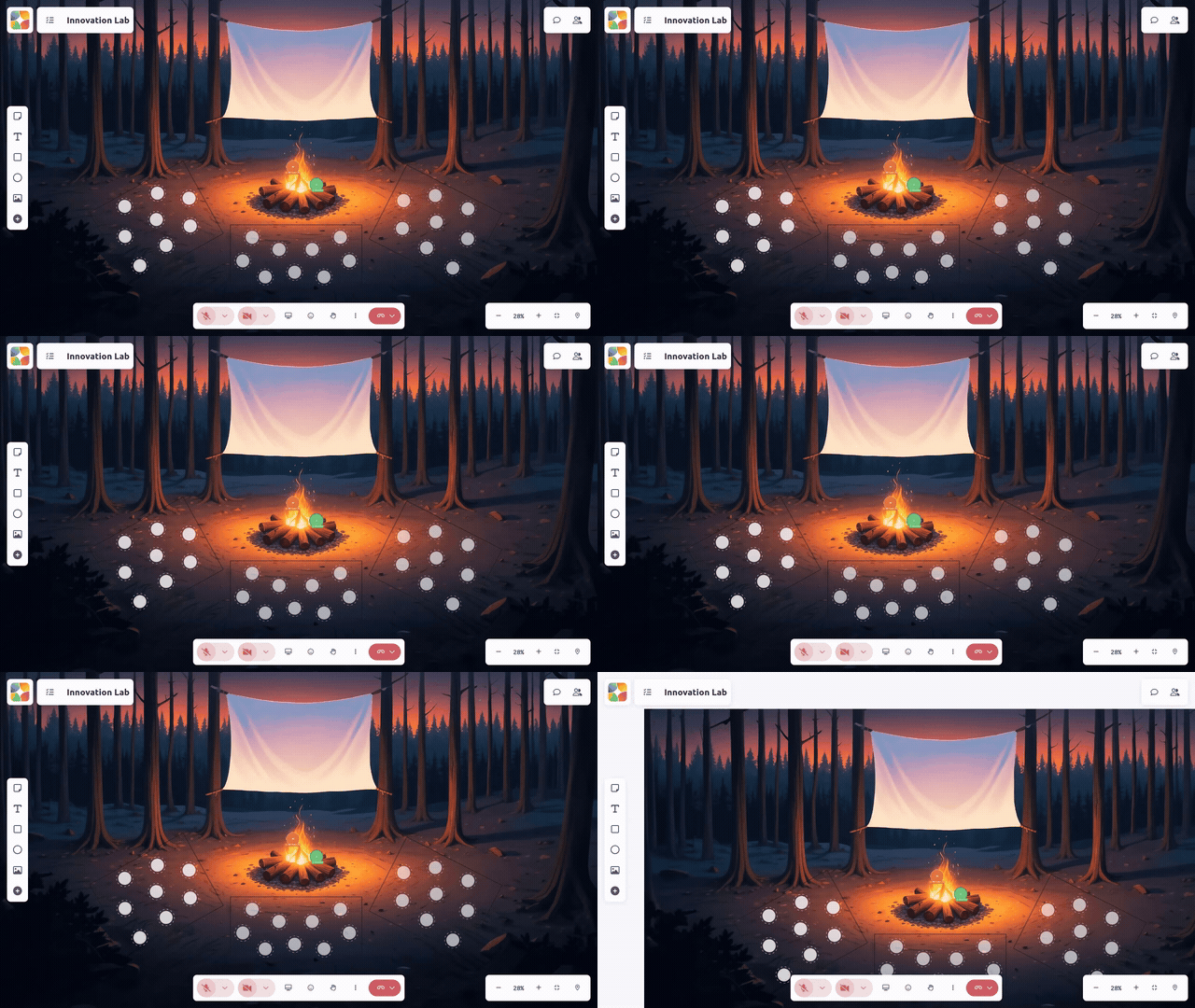
Think of it like: Sliding a map around on a table.
Scroll to Zoom
To zoom in or out:
- Scroll up or pinch out to zoom in
- Scroll down or pinch in to zoom out
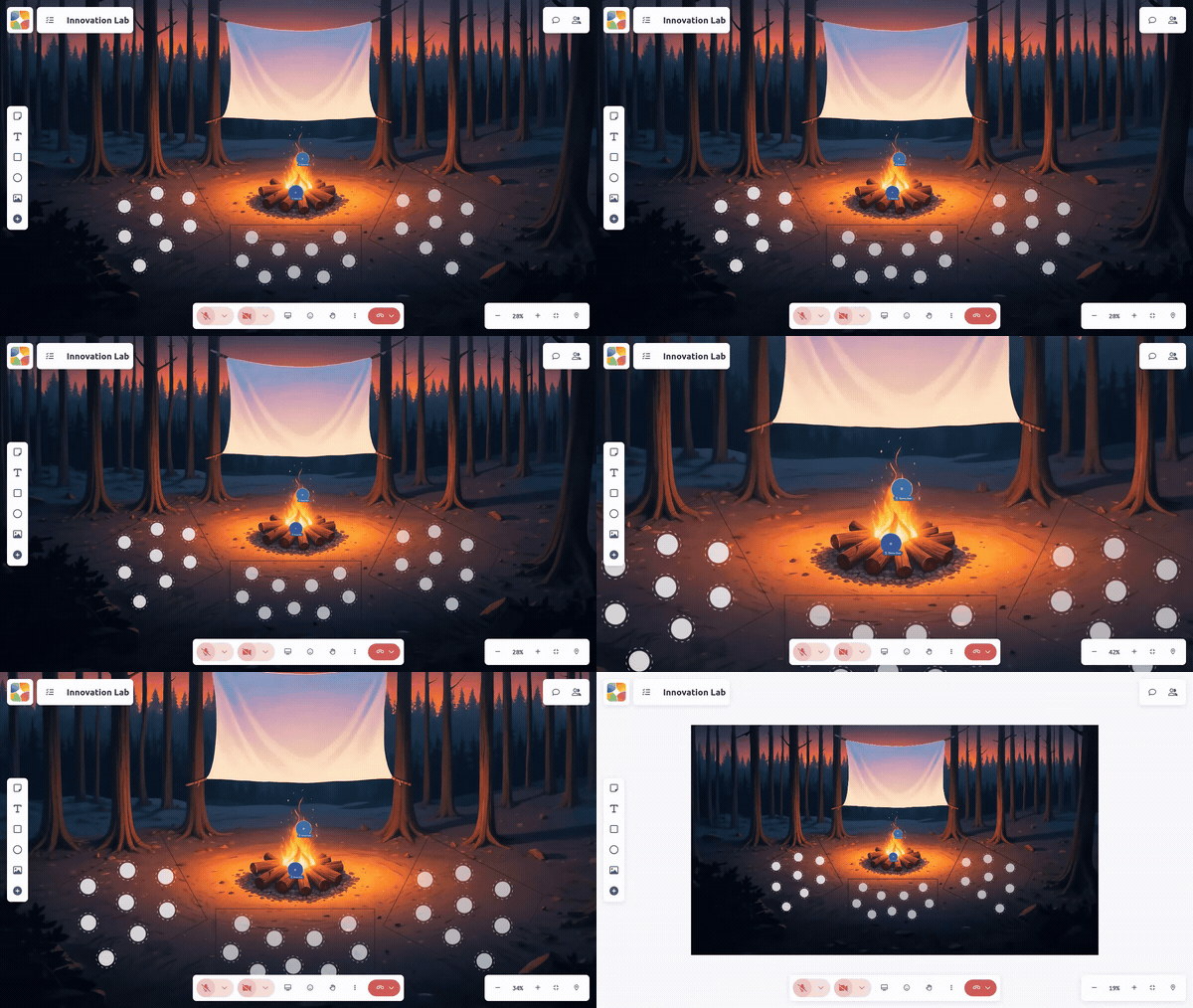
Tip: Zoom out to see the whole space, zoom in to focus on a specific area.
Alternative Pan Methods
- Space + drag - Hold the Space bar, then click and drag
- Right-click drag - Right-click and drag to pan
Keyboard Shortcuts
| Action | Shortcut |
|---|---|
| Pan canvas | Arrow keys (when nothing selected) |
| Pan faster | Shift + Arrow keys |
| Zoom in | Ctrl/Cmd + = |
| Zoom out | Ctrl/Cmd + - |
| Reset zoom | Ctrl/Cmd + 0 |
Zoom Controls
Look for the zoom controls in the bottom-right corner:
- + and - buttons to zoom in/out
- Percentage indicator showing current zoom level
- Reset button to return to default view
Find Yourself
If you get lost on the canvas, click the location icon in the zoom controls to center the view on your position. Your avatar also pulses a ring in your own color a few times, so you can spot yourself the instant the view lands — see Spatial Avatar Presence.
Understanding Spatial Audio
Spatial audio is Kolab's superpower. Here's how it works:
The Proximity Effect
Imagine you're at a party:
- You hear people near you clearly
- Across the room, conversations are just background murmur
- You can walk over to join a different group
Kolab works the same way.
Audio Zones
Sometimes facilitators create audio zones - invisible areas where everyone inside can hear each other clearly, regardless of position.
You might notice:
- Your audio suddenly becomes clearer when entering a zone
- You can hear everyone in the zone equally
- People outside the zone are harder to hear
When You Can't Hear Someone
- Move closer - They might just be too far away
- Check if they're muted - Look for a mute indicator
- Check if you're in different zones - Ask in chat if there are zones set up
- Check your audio settings - Setting up audio & video
Participating in Activities
Your facilitator might organize the space for different activities:
Breakout Conversations
- Small groups gathered in different areas
- Move to a group to join that conversation
- Move away when you want to leave
Gallery Walks
- Content spread across the canvas
- Wander around to explore
- Stop near interesting things to discuss
Large Group Discussions
- Everyone might be asked to gather in one area
- Or audio zones might let everyone hear the speaker
Using the Tools
Look for:
- Sticky notes - Add your thoughts
- Drawing tools - Sketch ideas
- Reactions - Quick emoji responses
- Raised hand - Get the facilitator's attention
Pro Tips
Don't Get Lost
If you wander too far and can't find anyone:
- Zoom out (scroll down) to see the whole space
- Look for clusters of participant videos
- Check the chat for guidance
Respect Personal Space
Just like in person:
- Don't crowd right on top of someone
- Give people room to breathe
- Move away if a conversation doesn't involve you
Use Movement Intentionally
- Move toward someone to signal you want to talk
- Move away to give privacy or join another group
- Stay put when you're engaged in the current conversation
When in Doubt, Ask
If you're confused about where to be or what to do:
- Use the chat to ask
- Raise your hand to get attention
- Look for visual cues (arrows, labels, colors)
Troubleshooting Navigation
"The canvas won't move"
- Make sure you're clicking on empty space, not an object
- Try zooming out first
- Refresh the page if nothing responds
"Everything is tiny" or "I can't see anything"
- You're probably zoomed out too far or too close
- Press Ctrl/Cmd + 0 to reset zoom
- Or use scroll/pinch to adjust
- Use the zoom controls in the bottom-right corner
"I can't find the other participants"
- Click the location icon in the zoom controls to center on yourself first
- Zoom way out (Ctrl/Cmd + - repeatedly) to see the whole space
- Look for clusters of videos
- Ask in chat where everyone is
"The spatial audio is confusing me"
- It takes a few minutes to get used to
- Think of it like a real room
- If you need to hear someone, move toward them
- Ask your facilitator if there are audio zones set up