
Running your first Kolab session? This guide will walk you through everything - from setup to wrap-up. By the end, you'll feel confident leading collaborative sessions that participants actually enjoy.
Before We Start
What Makes Kolab Different
Kolab isn't just another video call. Here's what changes:
| Traditional Video | Kolab |
|---|---|
| Everyone in a grid | Everyone on a shared canvas |
| One conversation at a time | Multiple simultaneous conversations |
| Facilitator broadcasts | Participants explore |
| Cameras off by default | Cameras naturally on |
The Facilitator Mindset
In Kolab, you're less of a broadcaster and more of a host at a party. Your job is to:
- Set up the space so activities flow naturally
- Guide participants, not control them
- Create moments for connection
- Step back and let conversations happen
Phase 1: Setting Up Your Space (1-2 days before)
Creating Your Space
- Log into Kolab and click Create Space
- Give it a clear name (participants will see this)
- Choose your access settings:
- Private - Only people you invite
- Link access - Anyone with the link
Understanding Boards
A Space contains one or more Boards - think of them as different rooms or pages within your space.
For your first session, one board is probably enough. You can:
- Pre-populate it with content (sticky notes, prompts, images)
- Leave it blank for collaborative creation
- Use a template if available
Setting Up the Canvas
Think about what participants will see when they arrive:
Good first-session setup:
- A welcome area where people land
- Clear labels or visual cues for different zones
- Pre-written prompts or questions
- Enough space for people to spread out
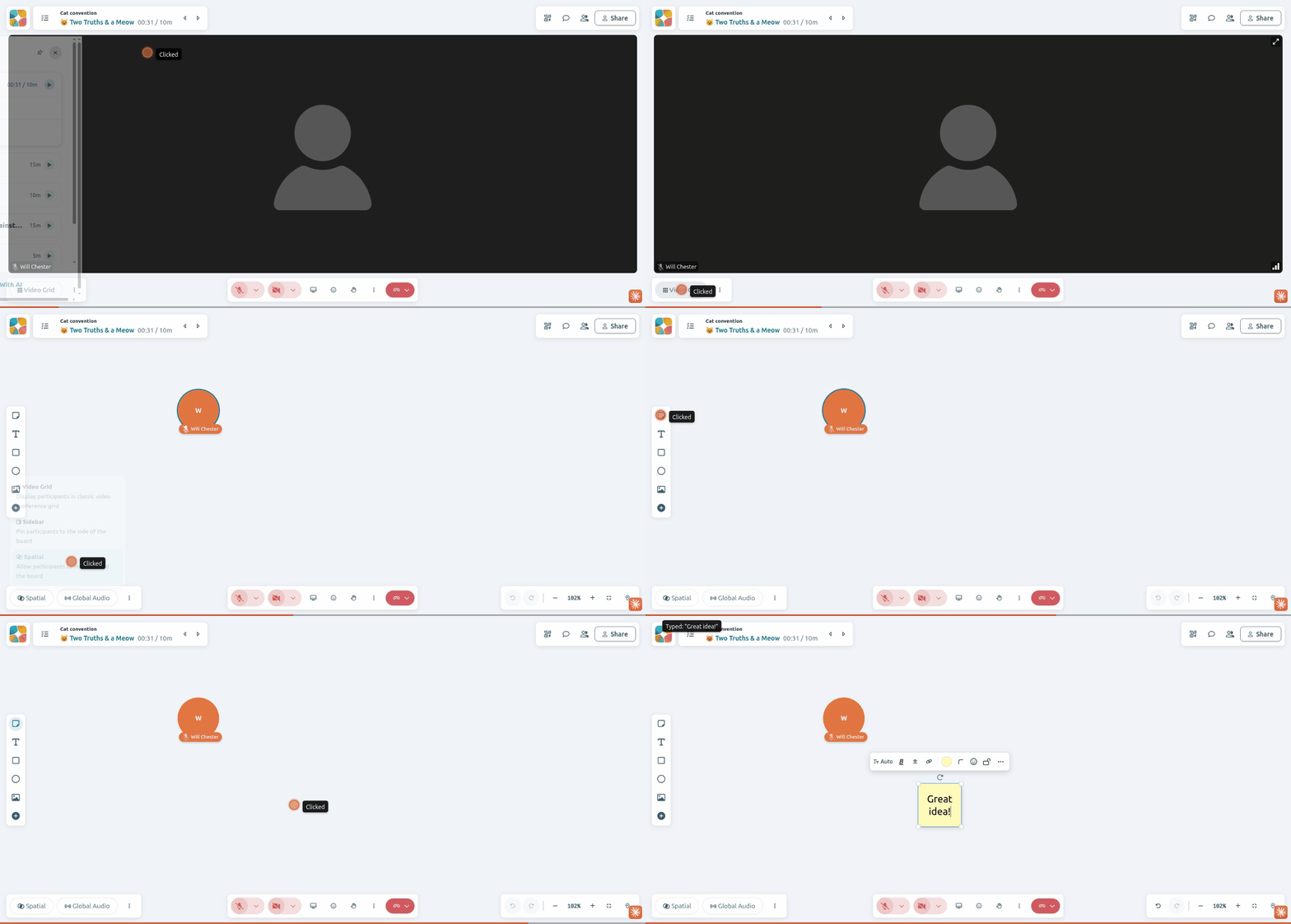
Tip: Zoom out and look at your canvas from the participant perspective. Is it clear where to go? What to do?
Preparing Content
Consider adding:
- Welcome text - A sticky note with "Welcome! Gather here to start"
- Agenda - Visual timeline or list of activities
- Prompts - Questions or topics for discussion
- Instructions - Brief text explaining each activity
Don't over-prepare. Leave room for participants to contribute. An empty canvas can be more engaging than a cluttered one.
Phase 2: Pre-Session Prep (1 hour before)
The Pre-Flight Checklist
Run through this checklist before every session:
- Run System Check - Verify your camera, mic, and browser
- Test your audio/video - Join the space and confirm everything works
- Check your internet - Close bandwidth-heavy apps
- Review your agenda - Know what you're doing and when
- Prepare your screens - Close unnecessary tabs, silence notifications
- Have the invite link ready - You'll need to share it
- Brief any co-facilitators - Make sure everyone knows their role
Pro tip: Share the System Check link with participants in your invite. It helps them troubleshoot before the session, saving you time during the call.
Test the Participant Experience
Before participants arrive:
- Run System Check to verify your setup
- Open the space in an incognito window (or different browser)
- Join as if you were a participant
- Navigate around - is it clear what to do?
- Test spatial audio - move around, check you can hear yourself
Set Up Your Facilitator View
As a facilitator, you might have additional controls:
- Participant list - See who's in the space
- Breakout controls - Create and manage breakout groups
- Announcement mode - Speak to everyone regardless of position
- Timer - Keep activities on track
Familiarize yourself with these before the session starts.
Phase 3: Running the Session
Welcome & Orientation (First 5 minutes)
This is crucial. Participants arriving for the first time need orientation.
What to cover:
- "Welcome to Kolab - this might look different from Zoom"
- "You're on a canvas that you can move around"
- "You hear people who are near you - move closer to hear better"
- "Let's do a quick tech check - can everyone see and hear me?"
Pro tip: Have participants do something physical in the first 2 minutes - like moving to a spot on the canvas or waving to someone. This builds comfort with the interface.
Managing the Space
Getting Everyone's Attention
When you need to address the whole group:
- Use announcement mode if available (your voice reaches everyone)
- Ask everyone to gather in one area
- Use chat to send a message everyone will see
- Use the timer - A visible countdown gets attention
Guiding Movement
Participants often need explicit guidance:
- ❌ "Split into groups" (too vague)
- ✅ "Move to the area with your team's color"
- ✅ "Find 2-3 people near you and form a small cluster"
- ✅ "Spread out so there's space between each group"
Handling Multiple Conversations
The beauty of Kolab is that groups can talk simultaneously. As a facilitator:
- Pop in and out of different groups
- Don't try to hear everything - that's the point
- Use chat to communicate without interrupting
- Set a timer so groups know when to wrap up
Common Activities
Icebreaker: The Wander
- Ask participants to move around the space
- When they're near someone, introduce themselves
- After 30 seconds, move on to someone new
- Repeat 3-4 times
This gets people comfortable with movement and spatial audio.
Small Group Discussion
- Create visual zones (colored areas, labels, or just open spaces)
- Assign or let participants choose groups
- Give a clear prompt and time limit
- Use timer for visibility
- Visit each group briefly to check in
Gallery Walk
- Spread content across the canvas (ideas, questions, artifacts)
- Participants wander and explore
- They add comments via sticky notes
- Gather to discuss highlights
Full Group Debrief
- Ask everyone to gather in one area
- Use announcement mode or audio zone
- Invite sharing from different groups
- Capture key points visually
Phase 4: Handling Issues
Technical Problems
| Problem | Quick Fix |
|---|---|
| "I can't hear anyone" | Have them move closer on canvas |
| "No one can hear me" | Check mute, check mic selection |
| "My video isn't working" | Close other apps using camera, refresh |
| "I'm lost on the canvas" | Have them zoom out, or share your screen briefly |
Group Dynamics
| Situation | How to Handle |
|---|---|
| Someone dominating | "Let's hear from someone who hasn't spoken yet" |
| Awkward silence | Provide more specific prompts, or give permission to chat |
| Off-topic conversation | Gently redirect: "Great energy! Let's bring that to..." |
| Technical frustration | Acknowledge it, offer help, don't let it derail the session |
When Things Go Wrong
They will. And that's okay.
- Acknowledge the issue - "We're having some technical difficulties"
- Have a backup plan - Can you continue without video? Without spatial audio?
- Use humor - "Well, that's not supposed to happen!"
- Don't panic - Your calm demeanor sets the tone
Phase 5: Closing the Session
Wrap-Up Ritual (Last 5-10 minutes)
- Give warning - "We have 5 minutes left"
- Capture outcomes - Screenshot key content, or export
- Share next steps - What happens after this session?
- Thank participants - Acknowledge their contribution
- Say goodbye - Let people leave naturally
After the Session
- Export any content - Boards, notes, artifacts
- Send follow-up - Summary, next steps, resources
- Reflect - What worked? What would you change?
- Get feedback - Quick survey or informal check-in
Your First Session: A Sample Agenda
Here's a template for a 45-minute session:
| Time | Activity | Facilitator Action |
|---|---|---|
| 0:00-0:05 | Welcome & Orientation | Gather everyone, explain the space |
| 0:05-0:10 | Icebreaker | Wander and meet activity |
| 0:10-0:25 | Small Group Discussion | Breakout into 3-4 groups, visit each |
| 0:25-0:35 | Gallery Walk or Activity | Participants explore canvas |
| 0:35-0:45 | Debrief & Close | Gather, share highlights, wrap up |
Adjust timing based on your group size and objectives.
Facilitator Pro Tips
Before the Session
- Join 15 minutes early to test and prepare
- Have your agenda printed or on a second screen
- Prep any co-facilitators with clear roles
During the Session
- Move around the space - model the behavior you want
- Use chat for instructions - it persists
- Don't fill every silence - give people time to think
- Watch the energy - if it's dropping, change something
After the Session
- Celebrate what went well (even if it's small)
- Note what you'd change for next time
- Follow up quickly while it's fresh
Next Steps
Now that you understand the basics, explore:
- Creating a Space - Deep dive into space setup
- Using Breakout Rooms - Manage multiple groups
- Audio Zones Explained - Advanced audio control
- Managing Participants - Permissions and controls
You've Got This
Your first session might feel awkward. That's normal.
The magic of Kolab is that it invites participation in a way that traditional video calls don't. Even if you stumble a bit with the technology, the platform's design will help your participants connect.
Take a breath, remember you're the host, and enjoy the ride.