
Kolab offers three distinct audio modes that control how participants hear each other. Understanding these modes—and when to use each—is essential for effective facilitation.
Before your session: Run System Check to verify your audio setup.
The Three Audio Modes
Kolab has three audio modes, selectable from the audio menu in Interactive mode:
| Mode | How It Works | Best For |
|---|---|---|
| Global | Everyone hears everyone, regardless of position | Presentations, announcements, small groups |
| Spatial | Proximity-based—closer = louder | Organic conversations, networking |
| Zoned | Only people in the same zone hear each other | Structured breakouts, team discussions |
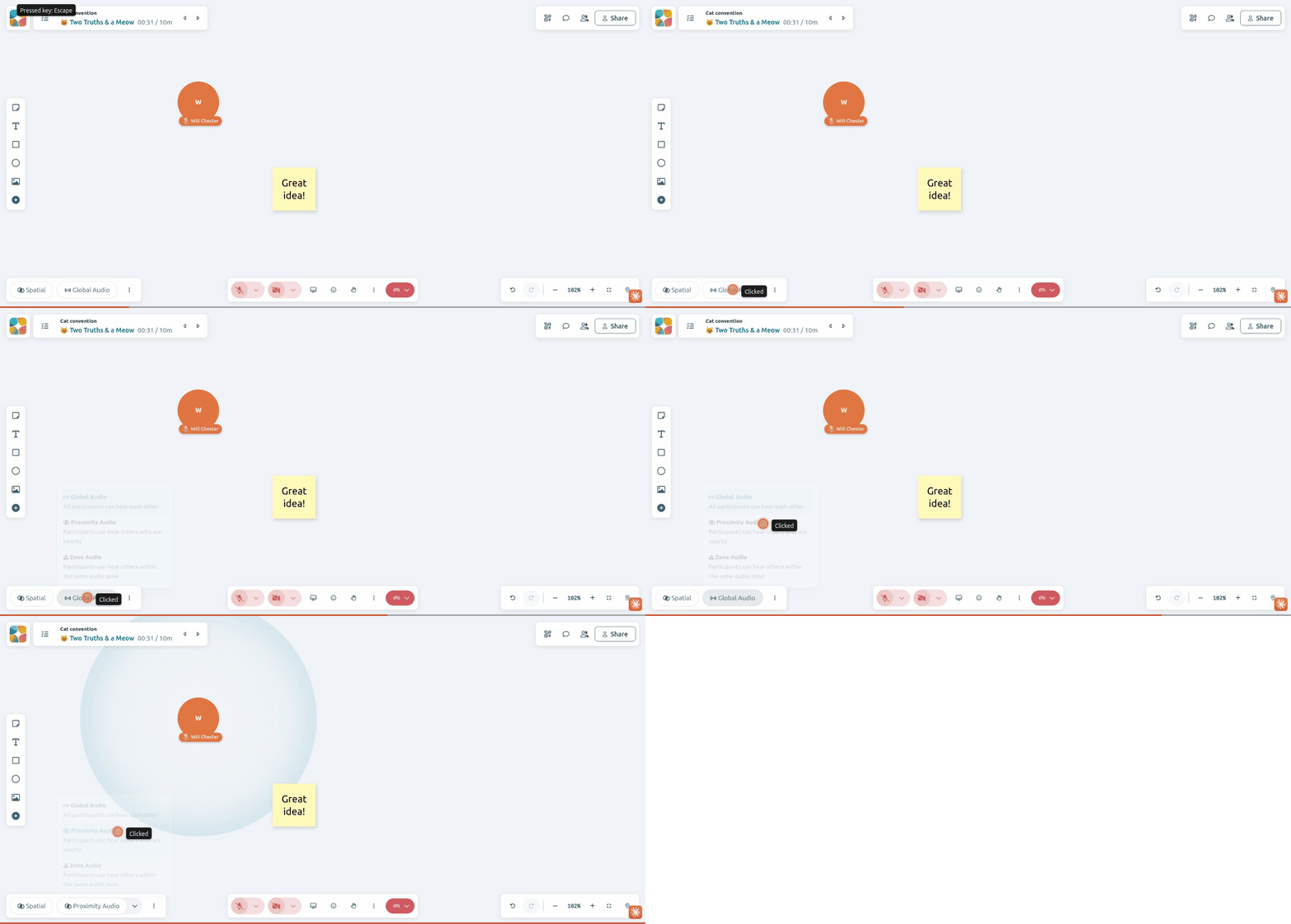
Global Audio
Everyone hears everyone at equal volume, regardless of where they are on the canvas.
When to Use Global Audio
- Presentations to all participants
- Opening and closing remarks
- Q&A sessions
- Small groups (under 10 people)
- Any time you need everyone to hear the same thing
How It Works
- No distance-based audio falloff
- All participants at equal volume
- Position on canvas doesn't affect audio
- Works like a traditional video call
Spatial Audio
Proximity-based audio where you hear people who are near you on the canvas. The closer someone is, the louder they sound.
When to Use Spatial Audio
- Networking and mingling sessions
- Gallery walks or station rotations
- Open conversations with organic movement
- Large groups that need to self-organize
How It Works
- Audio fades based on distance from other participants
- Uses exponential distance falloff
- Configurable radius (200-750 pixels, default 275)
- Beyond the radius, participants fade to silence
Adjusting the Spatial Radius
When Spatial mode is selected, a slider appears to adjust the hearing radius:
- Smaller radius (200px): More intimate conversations, multiple small groups possible
- Larger radius (750px): Hear more people, fewer separate conversations
- Default (275px): Good balance for most sessions
Zoned Audio
Geofenced audio where only participants inside the same zone can hear each other. This is not proximity-based—you're either in a zone or you're not.
When to Use Zoned Audio
- Structured breakout discussions
- Team meetings within a larger session
- Station-based activities
- Any time you need clear audio separation
How Zones Work
Zones are canvas elements (rectangles, circles, images, or iframes) with audio boundaries enabled. When Zoned mode is active:
- Participants inside a zone hear only others in that same zone
- Participants outside all zones hear only others who are also outside zones
- Moving into or out of a zone immediately changes who you can hear
Creating Audio Zones
- Draw a rectangle or circle on the canvas
- Right-click the element (or use the context menu)
- Select Enable audio zone boundary
- Repeat for each zone you need
You can also use images or iframes as zone boundaries—useful for creating visually distinct areas.
Visual Zone Indicators
When a zone is enabled, participants see:
- Solid border when they are inside the zone
- Dashed border when they are outside the zone
This helps participants understand which zone they're in.
Zone Tips
- Size matters: Make zones large enough for participants to comfortably fit
- Clear boundaries: Use visible shapes so participants can see where zones are
- Add labels: Place text elements near zones to identify them (e.g., "Team A", "Discussion Area")
- Test first: Enter and exit zones to verify they work as expected
Enabling/Disabling Zones
To toggle a zone on or off:
- Select the element
- Open the context menu (right-click or menu button)
- Toggle Enable audio zone boundary
You can also select multiple elements and enable/disable zones in bulk using the multi-select toolbar.
Switching Audio Modes
How to Switch
- Click the Audio menu in the control bar (only available in Interactive mode)
- Select your desired mode: Global, Spatial, or Zoned
- The change applies immediately for all participants
Mode Availability
Audio modes are only available in Interactive (Spatial) space mode:
| Space Mode | Audio Options |
|---|---|
| Conference (Video Grid) | Global only (fixed) |
| Sidebar | Global only (fixed) |
| Interactive (Spatial) | Global, Spatial, or Zoned |
Announcing Mode Changes
When switching modes, tell participants what's happening:
Switching to Spatial:
"I'm switching us to spatial audio. You'll now hear people based on how close you are to them on the canvas. Move closer to someone to hear them better."
Switching to Zoned:
"I'm switching to zoned audio. You'll only hear people who are in the same colored area as you. Move to your team's zone to start your discussion."
Switching to Global:
"I'm switching to global audio so everyone can hear each other. Let's come back together."
Audio Modes vs. Breakout Rooms
Both enable separate conversations. Here's when to use each:
| Feature | Zoned Audio | Breakout Rooms |
|---|---|---|
| Separation | Soft (same canvas, audio-only separation) | Hard (separate spaces) |
| Movement | Participants move freely between zones | Participants are assigned to rooms |
| Visibility | Everyone sees everyone on the canvas | Only see people in your room |
| Facilitator view | Can see all zones at once | Must visit each room separately |
| Setup | Draw shapes, enable as zones | Create rooms, assign participants |
Choose Zoned Audio when: You want visual collaboration, fluid movement, and easy oversight.
Choose Breakout Rooms when: You need complete separation, controlled timing, or private discussions.
Common Scenarios
Scenario 1: Opening → Breakout → Debrief
- Start in Global: Welcome everyone, explain the activity
- Switch to Zoned: "Move to your team's zone for discussion"
- Switch to Global: "Let's come back together to share"
Scenario 2: Networking Event
- Use Spatial: Let participants mingle naturally
- Adjust radius based on group size
- Smaller radius = more intimate conversations
- Larger radius = easier to find people
Scenario 3: Station Rotations
- Create zones for each station
- Use Zoned mode during rotations
- Each station has isolated audio
- Participants rotate on facilitator cue
Troubleshooting
"I can't hear anyone"
- Check which audio mode is active
- In Spatial mode: Move closer to other participants
- In Zoned mode: Make sure you're inside a zone with others
- Verify your audio is working (System Check)
"Everyone can hear our 'private' conversation"
- Verify Zoned mode is active (not Global or Spatial)
- Check that your zone boundary is enabled
- Make sure all group members are inside the zone boundary
- Zone boundaries have a small buffer—stay well inside
"Zones aren't working"
- Confirm the space is in Interactive mode (zones don't work in Conference or Sidebar)
- Confirm Zoned audio is selected in the audio menu
- Verify the element has audio zone boundary enabled
- Test by moving in and out of the zone
"Participants are confused"
- Start with simpler setups (fewer zones)
- Use visible shapes with clear colors
- Add text labels near each zone
- Demonstrate by walking through zones yourself
Related Guides
- Space Modes Explained - Understanding Conference, Sidebar, and Interactive
- Using Breakout Rooms - Alternative for group work
- Your First Session - Complete facilitation guide
- System Check - Verify audio before sessions