
The timer keeps your sessions on track by showing participants how much time remains for activities. Visible countdowns create focus and help groups self-manage their time.
Why Use Timers
For Facilitators
- Keep sessions on schedule
- Signal transitions clearly
- Reduce "how much time do we have?" questions
- Create urgency for activities
- Free yourself from clock-watching
For Participants
- Know how much time remains
- Self-manage within timeboxes
- Reduce anxiety about running out of time
- Focus on the task at hand
Timer Basics
Starting a Timer
- Find the Timer control in the facilitator toolbar (or Tools menu)
- Set the duration in minutes
- Optionally enable Auto-start
- Click Activate or Start
- Timer becomes visible to all participants
Timer Controls
Once a timer is active, facilitators can:
| Control | Action |
|---|---|
| Play | Start or resume countdown |
| Pause | Freeze countdown |
| Stop | Stop the timer |
| Reset | Return to original duration |
| + / - | Add or subtract a minute |
| Close (X) | Dismiss the timer |
What Participants See
- The countdown display showing time remaining
- Visual indicator of time passing
- Visual indicator when time is running low
Note: Only facilitators see and can use the timer controls. Participants see the countdown but cannot pause, stop, or modify it.
Timer Configuration
When creating or editing a timer, you can set:
| Setting | Description |
|---|---|
| Duration | Time in minutes |
| Auto-start | Whether timer starts immediately when activated |
| Title | Name for the timer (optional) |
How the Timer Works
Countdown Behavior
- Timer counts down from the set duration to zero
- When time reaches zero, the timer stops but remains visible
- Timer does not automatically close or trigger actions at zero
- Facilitator must manually stop or close the timer when done
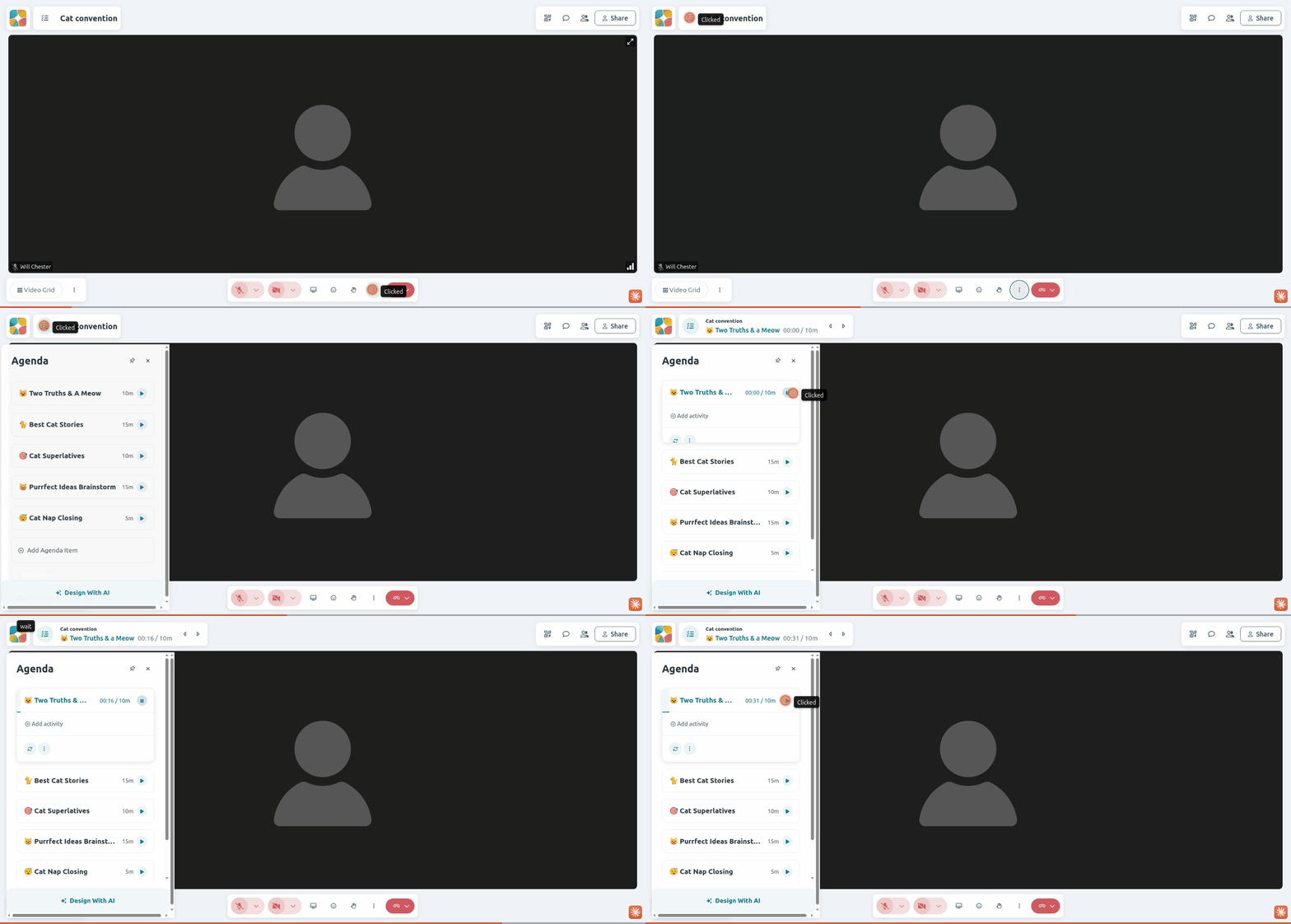
Timer with Agenda Items
Timers can also be attached to agenda items:
- When an agenda item with a duration is activated, its timer starts
- The timer appears in the title bar area
- Progress indicator shows how much time has elapsed
Using Timers Effectively
Setting Appropriate Times
| Activity | Suggested Duration |
|---|---|
| Quick brainstorm | 3-5 minutes |
| Individual reflection | 2-3 minutes |
| Pair discussion | 5-7 minutes |
| Small group work | 10-15 minutes |
| Presentation prep | 5-10 minutes |
| Short break | 5 minutes |
| Longer break | 10-15 minutes |
The Time Announcement Pattern
Before starting:
"You have 5 minutes for this activity. I'll put a timer on screen so you can see the countdown."
Time warnings:
"Two minutes remaining." "One minute left—start wrapping up." "30 seconds."
At completion:
"Time's up! Let's come back together."
Managing Timer Anxiety
Some participants stress about timers. Help them by:
- Explaining that timers are guides, not strict deadlines
- Giving verbal warnings before timer ends
- Being willing to add time if needed
- Framing positively: "You have a full 10 minutes"
Common Timer Scenarios
Activity with Hard Stop
Setup: Timer with full duration, watch for zero
Script:
"This activity is exactly 10 minutes. When the timer reaches zero, we need to move on regardless of where you are. Budget your time accordingly."
Flexible Activity
Setup: Timer as guide, be ready to add time
Script:
"Aim for about 5 minutes. If you need a bit more time, that's okay—I can add a minute or two."
Presentations
Setup: Timer visible to presenter
Script:
"Each presenter has 3 minutes. The timer will count down, and I'll signal when you have 30 seconds left."
Timer Best Practices
Planning Your Timing
Before the session:
- Estimate time for each activity
- Add buffer between activities (2-5 min)
- Build in flex time somewhere
- Know what you'll cut if you run long
During the Session
Watch for signs you need to adjust:
- Groups finishing early (timer too long)
- Rushed energy, stress (timer too short)
- Great discussion happening (worth extending)
- Energy dropping (time to move on)
When to Extend
- Valuable discussion happening
- Groups clearly need more time
- Quality matters more than coverage
Use the + button to add a minute at a time.
When to Cut Short
- Activity completed early
- Energy has dropped
- Running behind overall
Use the Stop button and move on.
Troubleshooting
"Timer not visible to participants"
- Verify timer is activated (not just created)
- Make sure the timer is started (play button pressed)
- Have participants refresh if needed
"Timer stuck at zero"
This is expected behavior—the timer stops at zero but doesn't automatically close. Click the X or Stop button to dismiss it.
"Need to change duration"
- Stop the current timer
- Create a new timer with the correct duration
- Or use the +/- buttons to adjust while running
"Wrong time shown"
If the timer seems out of sync:
- Check your internet connection
- Refresh the page
- Stop and restart the timer
Related Guides
- Your First Session - Facilitation fundamentals
- Using Breakout Rooms - Group activities
- System Check - Verify your setup