
Kolab offers three distinct modes that change how participants experience your space. Choosing the right mode can make or break your session's effectiveness.
Before your session: Run System Check to ensure your setup is working correctly.
The Three Modes at a Glance
| Mode | UI Name | Best For | Video Layout | Canvas Access |
|---|---|---|---|---|
| Conference | Video Grid | Presentations, lectures | Grid view, everyone visible | View only (no editing) |
| Sidebar | Sidebar | Workshops, mixed activities | Sidebar on right | Full canvas access |
| Interactive | Spatial | Creative sessions, collaboration | Minimal, proximity-based | Full canvas access |
Conference Mode
Think of it as: A virtual auditorium or meeting room.
When to Use
- Presentations to large groups
- Keynote speeches or lectures
- Company all-hands meetings
- Panel discussions
- Any time you need all faces visible
How It Works
- Video grid takes center stage
- All participants visible in traditional grid layout
- Canvas is secondary or hidden
- Clear focus on speaker(s)
- Works like traditional video conferencing
Best Practices
- Use for opening and closing - Start in Conference mode for introductions, switch to Interactive for activities
- Spotlight important speakers - Keep facilitators and presenters prominent (see Pin and Spotlight Speakers)
- Monitor chat - With limited canvas interaction, chat becomes primary participation
- Plan transitions - Tell participants before switching modes
Sidebar Mode
Think of it as: A meeting room with a whiteboard on the wall.
When to Use
- Workshops with mixed presentation and activity
- Training sessions
- Team meetings with visual aids
- Any session needing both faces and canvas
How It Works
- Video sidebar on the side of the screen
- Canvas takes most of the space
- Sidebar can be collapsed/expanded
- Balance between seeing people and content
- Participants can focus on either as needed
Best Practices
- Default for most workshops - Good balance of human connection and collaboration
- Teach the collapse - Show participants how to expand/collapse the sidebar
- Use for reviews - Great for looking at work while discussing
- Position matters - Place content near the sidebar so eyes don't travel far
Pin and Spotlight Speakers
In Conference and Sidebar modes, you can make one person's video bigger. Pin someone just for yourself, or, as a host or facilitator, spotlight them for everyone.
Pin someone for yourself
Anyone can do this. Hover a video tile and click the focus button in its top-right corner. That person takes the big tile on your screen:
- Conference mode: they fill the main tile, with everyone else in a strip.
- Sidebar mode: they take the sidebar's big tile.
Click the button again to unpin. Pins are private, so nobody else's layout changes.
Spotlight someone for everyone
Hosts and facilitators can enlarge someone for the whole room:
- From their video: hover their tile and click the star in its top-left corner. The tooltip reads Spotlight [name] for everyone.
- From the Participants panel: open the menu on their row and choose Spotlight for everyone. You can spotlight yourself, too.
A spotlit tile shows a filled star and an amber ring, so everyone can tell why that person is big. Participants who hover the star see "Spotlighted by the facilitator."
To end it, click the star again (Remove spotlight from [name]), or choose Remove spotlight from the Participants panel.
Note: Spotlight is for people, not content. Screen-share tiles don't get a star.
Who gets the big tile
When more than one thing could take the big tile, Kolab picks in this order:
| Priority | Who | Applies in |
|---|---|---|
| 1 | Your own pin | Conference and Sidebar |
| 2 | A screen share | Conference |
| 3 | The facilitator's spotlight | Conference and Sidebar |
| 4 | Whoever is speaking | Sidebar |
In Conference mode with nothing pinned, shared, or spotlit, everyone shares the grid equally.
Interactive Mode
Think of it as: An open studio space with proximity audio.
When to Use
- Creative brainstorming sessions
- Open networking or mingling
- Gallery walks or station rotations
- Unconference-style gatherings
- Any time you want organic movement
How It Works
- Minimal video UI - Small video bubbles or avatars
- Spatial/proximity audio - Hear people near you on canvas
- Full canvas is the experience
- Natural movement and conversation
- Feels like being in a physical space
Best Practices
- Explain the metaphor - "Move around like you would at a conference"
- Create destinations - Set up areas on canvas for people to gather
- Use audio zones - Define spaces for focused conversations
- Trust the chaos - It's okay if not everyone hears everything
Switching Modes During a Session
How to Switch
- Click the mode button in the bottom-left corner (shows current mode name)
- Select your desired mode from the dropdown
- Changes apply immediately for all participants
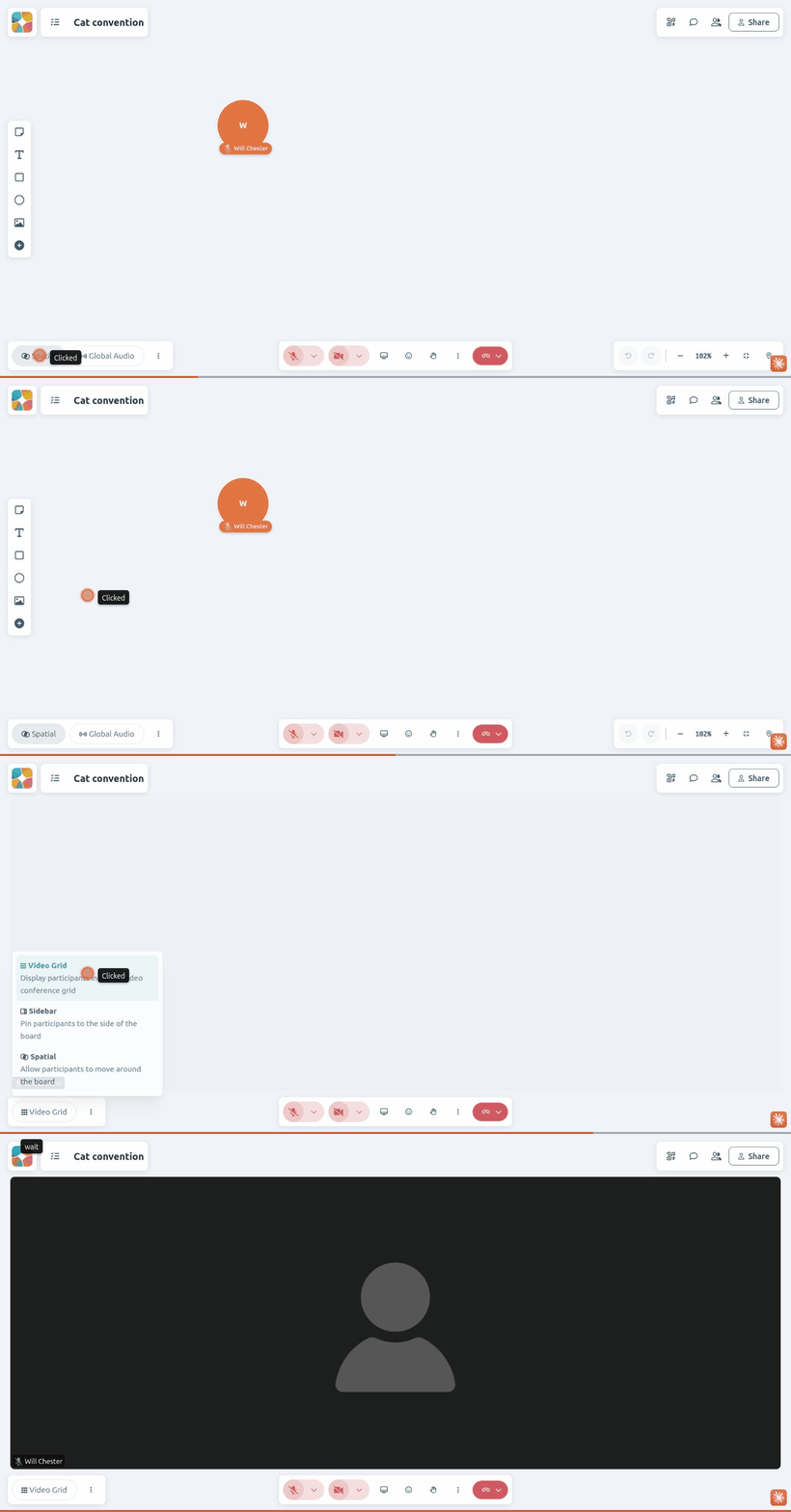
Transition Tips
Announce before switching:
"In a moment, I'm going to switch us to Interactive mode. You'll see the canvas expand and your videos shrink. You'll also start hearing people based on where you are on the canvas."
Give orientation after:
"You should now see the canvas. Notice the areas I've set up - Team A zone is in blue on the left, Team B is in green on the right."
Common Transitions
| From → To | Use Case |
|---|---|
| Conference → Sidebar | "Now let's look at some examples together" |
| Sidebar → Interactive | "Time for breakout discussions - move to your team's area" |
| Interactive → Conference | "Let's come back together and share what we discussed" |
| Interactive → Sidebar | "Let's debrief while looking at what you created" |
Mode Selection Flowchart
Ask yourself:
-
Do participants need to see each other's faces primarily?
- Yes → Conference Mode
- No → Continue to question 2
-
Do participants need to work on the canvas?
- No → Conference Mode
- Yes → Continue to question 3
-
Do you need video visible while working?
- Yes → Sidebar Mode
- No (or want proximity audio) → Interactive Mode
Combining Modes with Audio Zones
Modes and audio zones work together:
- Conference + Global Audio - Everyone hears everything (traditional meeting)
- Sidebar + Global Audio - Workshop with shared audio
- Interactive + Proximity Audio - Natural spatial experience
- Interactive + Audio Zones - Controlled breakout areas
See Audio Zones Explained for detailed zone configuration.
Troubleshooting
"Participants can't find each other"
- In Interactive mode, participants may be far apart on canvas
- Use Gather All or direct them to a specific location
- Consider Sidebar mode for easier coordination
"Mode changed but nothing looks different"
- Some mode changes are subtle depending on current layout
- Ask participants to refresh if needed
- Check that you have facilitator permissions
"People keep switching modes"
- Check participant permissions
- Only facilitators should have mode control
- Communicate the current mode and why
Related Guides
- Board Modes - Control what participants can do on a specific board (a different setting from Space Modes)
- Audio Zones Explained - Control who hears who
- Guiding Attention - Follow me, lead the room's tool view, and focus mode
- Your First Session - Complete facilitation guide
- Creating a Space - Initial setup
- System Check - Verify your setup